Category: Tech Tips - RD3 Tech

Where Did I Put That File? A Simple Guide to Organising Your Digital Life

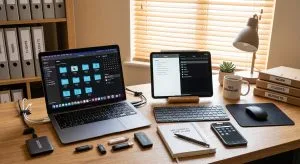
How to Organise Your Digital Files

Most people don’t really have a file-storage problem.

They have a finding-things problem.

You know the document exists. You just can’t remember whether it’s in Downloads, Documents, on the Desktop, in Google Drive, OneDrive, iCloud or attached to an old email.

The answer isn’t necessarily to create hundreds of folders.

In fact, that can sometimes make things worse.

Keep the Structure Simple

I’d start with a simple structure that reflects the way you actually use your files.

For example:

Work

  • Clients
  • Finance
  • Projects

Personal

  • Documents
  • Photos
  • Important Records

Archive

  • Older information you don’t regularly need

The exact structure isn’t important. It needs to make sense to you.

You might prefer organising by client, year, project or type of document. There isn’t one perfect filing system — the important thing is being able to find something again without having to remember exactly where you put it.

Give Your Files Useful Names

File names are just as important as folders.

Something called “Document1-final-new.pdf” isn’t very helpful six months later.

Something like “Insurance – House – 2026.pdf” tells you much more.

A useful file name should give you enough information to recognise the file without having to open it. For some documents, including a date, client name or project name can make searching much easier.

Don’t Use the Desktop as Permanent Storage

I’d also avoid treating the Desktop as permanent storage.

It’s useful as a temporary working area, but once everything ends up there, it becomes another filing cabinet — except without much of a filing system.

If you regularly find yourself with dozens of files covering the entire Desktop, it might be time to move them into a structure that makes more sense.

Organisation Isn’t Backup

There’s one other important point: organisation isn’t backup.

Having a beautifully organised folder that exists on one computer doesn’t protect you if that computer fails, is lost, is stolen or suffers a drive failure.

A sensible file system should work alongside a sensible backup strategy.

That might involve cloud storage, an external drive, or a combination of different backup methods. The important thing is that your important files exist somewhere other than just the computer you’re currently using.

You Don’t Have to Do It All at Once

You don’t have to reorganise your entire digital life in one weekend either.

Start with the files you use most often. Create a simple structure, tidy the areas that cause you the most frustration and gradually work through the older material.

You may even find that once the main problem areas are sorted, the rest becomes much easier to deal with.

The best filing system is one you’ll actually keep using.

If your files have become difficult to manage, RD3 Tech can help you work out a practical structure and a sensible way forward — without trying to reorganise everything at once.
Choosing the Right Computer for the Next Five Years

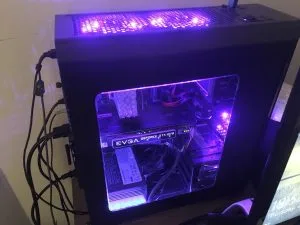
How to Choose the Right Computer

When you’re buying a new computer, it’s tempting to start with the specifications.

  • How much RAM?
  • How much storage?
  • Which processor?
  • Which model?

Those things matter, but I don’t think they’re the best place to start.

The first question should be: What do you actually need the computer to do?

A computer used for email, web browsing and office work has very different requirements from one used for video editing, engineering software, graphic design or large databases.

Think Beyond Today

Once you understand what the computer needs to do today, I’d think about how those needs might change.

If you’re replacing an older computer, there’s a good chance you want the new one to last several years. That means it’s worth thinking beyond your current workload and considering what you might need in the future.

Some useful questions are:

  • What software do you use now?
  • Are you likely to use anything more demanding?
  • How much storage do you need?
  • How much memory makes sense?
  • What monitors and other equipment need to connect?
  • How long do you want to keep the computer?
  • What happens if your requirements change?
  • What is a sensible budget?

Think About the Solution, Not Just the Product

This is also where I think it’s important to separate the solution from the product.

A particular Mac, Windows PC or laptop isn’t automatically the right answer simply because someone recommends it.

The right computer is the one that provides the capability, reliability and lifespan you need without paying for things you don’t.

That also means considering the rest of the setup. The computer might be only one part of the solution. Your monitor, keyboard, mouse, storage, backup system, printer and other equipment may all need to work with it.

More Expensive Doesn’t Always Mean Better

Sometimes spending a little more now makes sense because it gives you more useful life later.

For example, additional memory or storage may be worthwhile if it helps the computer remain useful for several more years.

Sometimes, however, paying more simply means buying capability you are unlikely to use.

The goal isn’t to buy the most powerful computer you can afford. It’s to buy the right computer for the job you’re going to ask it to do.

Start With the Requirements

If you’re looking at replacing a computer but aren’t sure what you actually need, RD3 Tech can help you work through the requirements first and then find a solution that makes sense for the next few years.

Sometimes the best purchasing advice starts with not looking at computers at all — and instead working out what problem you’re actually trying to solve.

Do You Really Need Antivirus? Understanding Microsoft Defender in Windows

Do You Still Need Antivirus Software?

If you’ve bought a Windows computer in the last few years, you may have wondered whether you still need to install separate antivirus software.

It’s a reasonable question.

For a long time, the standard advice was simple: buy a computer, then install antivirus software.

Things have changed.

Modern Windows includes Microsoft Defender Antivirus as part of Windows Security. It runs in the background and provides protection against a wide range of common threats without requiring you to buy another antivirus product.

So, Do You Need Another Antivirus Program?

For many home users, probably not.

That doesn’t mean you can forget about computer security. Antivirus is only one part of keeping a computer safe.

Keeping Windows and your applications up to date is important. So is using strong, unique passwords and enabling multi-factor authentication where it’s available. Being careful with unexpected links, attachments and downloads still matters too.

It’s also important to make sure your backups are working. Antivirus software may help prevent or detect malware, but it can’t guarantee that your files will never be lost or compromised.

When Additional Security Might Make Sense

There are situations where additional security tools may be useful.

Businesses can have different requirements, particularly where there are multiple computers, sensitive information, compliance requirements or a need for centralised security management.

Some security products also include additional features such as web protection, identity monitoring, password management or centralised management. Those features may be valuable depending on how the computer or organisation is being used.

More Software Doesn’t Automatically Mean More Security

The important thing is not to assume that more software automatically means more security.

Installing another antivirus product can mean another subscription, more notifications and another piece of software running on your computer. In some cases, it may provide useful additional features. In others, you’re paying for something you don’t really need.

Running multiple security products that try to provide the same type of real-time protection can also cause unnecessary conflicts or performance issues.

Look at the Whole Setup

This is why I prefer to look at the whole setup rather than recommending a product simply because it’s available.

Good computer security is about layers: keeping software updated, using sensible account security, being cautious about what you open and install, having reliable backups and making sure the security tools you do use are configured properly.

The goal is to have the right level of protection for how you actually use your computer.

If you’re unsure whether your current security setup is doing enough — or whether you’re paying for software you don’t need — RD3 Tech can help you look at the bigger picture and work out what makes sense.